Check before you share: Using built-in tools to improve accessibility
15 April 2026
This blog is written by Heather Pennington and Alex Stewart from the Learning and Teaching Academy.
Accessibility checkers are built into many of the digital tools you already use. They can scan your content and highlight common issues in documents, presentations, and learning materials. These issues are often quick and easy to fix once you know where to look.
What do accessibility checkers do?
Think of an accessibility checker like spellcheck. You probably wouldn’t share a document without checking the spelling or grammar, and accessibility should be the same. Accessibility checkers can help to:
- Flag missing alternative text on images
- Identify unclear heading structures
- Highlight reading order issues in presentation slides
- Spot potential colour contrast problems
They cannot catch everything, but they are a great starting point to quickly identify common barriers and improve accessibility. Using an accessibility checker means we can fix issues early and share materials with confidence to support a wide range of students and colleagues.
How to use them
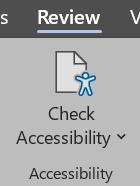
In Microsoft Word and PowerPoint, the Accessibility Checker can be found under the Review tab. Once it is opened it will show any accessibility issues identified alongside clear guidance on how to fix them. It is best to run the accessibility checker as a final step before sharing or uploading your documents or slides.
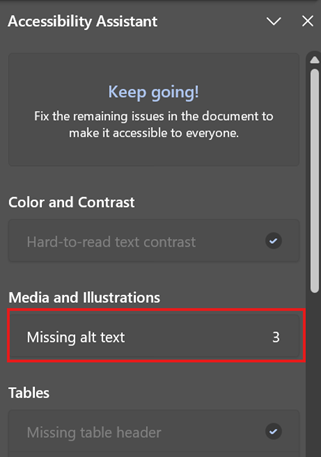
It’s worth noting that the checker cannot judge the quality of features such as Alt Text. For this you can refer to the Microsoft Alt Text Guide or the POET Training Tool for examples of effective Alt text descriptions.
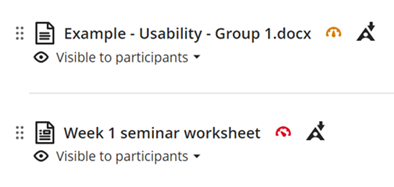
In Learning Central, Ally provides a built-in way to check accessibility as you create or upload content. It uses a simple traffic light system to indicate accessibility levels and offers step-by-step guidance to help you make improvements. This video shows you how to fix accessibility issues in Learning Central using Ally.
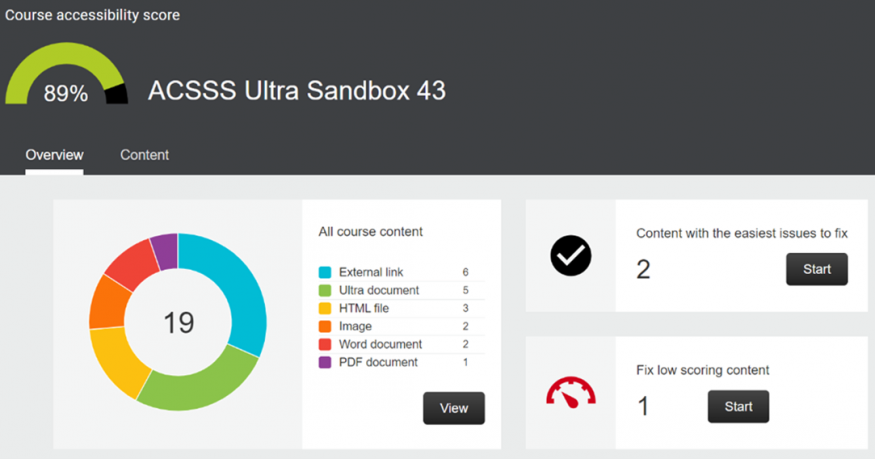
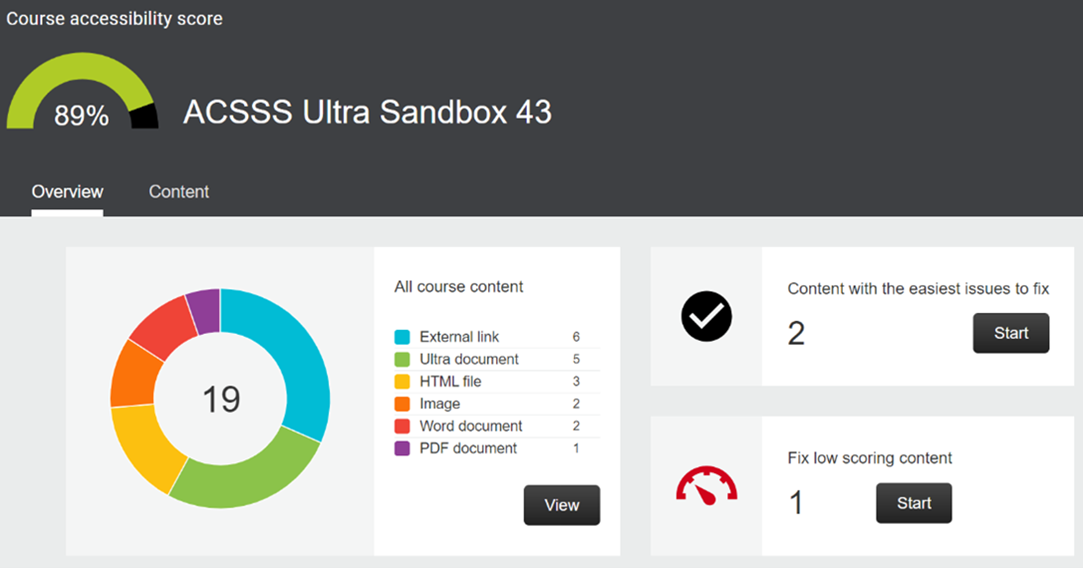
Ally also includes a Course Report which gives an overview of accessibility across your module. This can help you identify and prioritise areas for improvement. The report is available in the ‘Books & Tools’ section of your Learning Central modules. This video demonstrates how to identify accessibility issues using the Ally Course Report.
Final thought
Building accessibility checks into your routine can make a real difference. Running the checker before uploading or sharing materials, and making small adjustments where needed, quickly becomes part of everyday practice.
Accessibility checkers are a very useful tool, but they are not the complete solution and passing the check doesn’t always guarantee the content is fully accessible and inclusive. The Digital Accessibility Guide can help you further enhance accessibility and inclusion in your practice.
If you’d like more support or have ideas for future blogs, contact us at [email protected]. Together, we can make digital content more inclusive for everyone.