Keeping on top of due dates in Learning Central
7 July 2026

This blog post is written by Dai, a Learning Technologist with the Learning and Teaching Academy.
Effective planning and time management are important for students to succeed in their studies. We all have busy lives managing study, work, caring responsibilities and many other things, not to mention needing time for rest, socialising and self-care. Balancing competing demands on our time is challenging and effectively keeping track of important dates such as assessment deadlines can really help. In this blog post, I’d like to share some tips on how students can keep track of due dates in Learning Central, and how module leaders can help them too.
The Learning Central activity stream
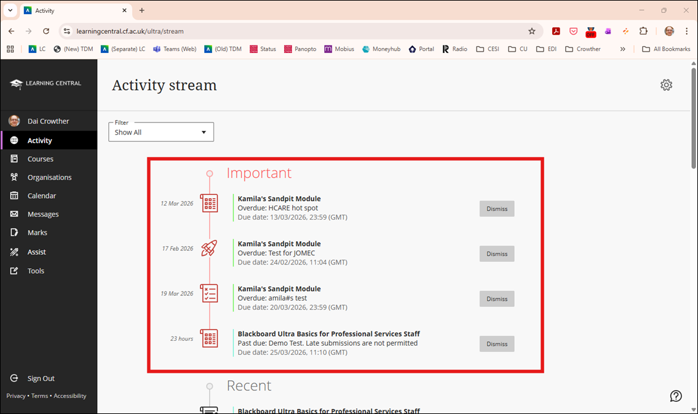
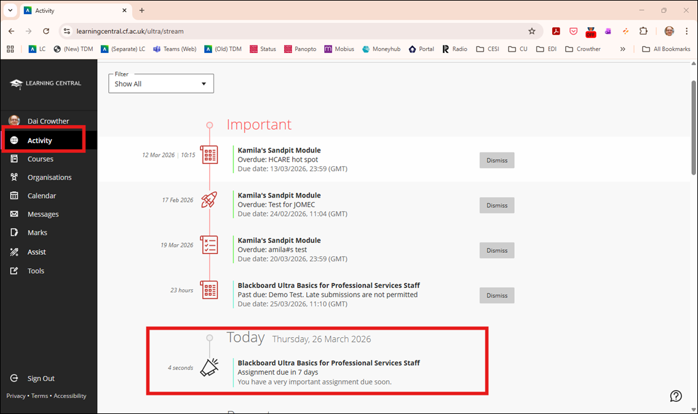
Important dates such as upcoming deadlines are grouped together and displayed at the top of the Activity Stream, so it’s easy for students to see them in one place.
Learning Central notifications
Students can change the frequency and type of notifications they receive (e.g., due date notifications) in Learning Central. Notification settings can be accessed via the cog icon in the top-right corner of the Activity Stream. Students can manage the notifications they receive via:
- The Activity Stream.
- Email.
- Push notifications in the mobile app (available on Apple and Android devices).
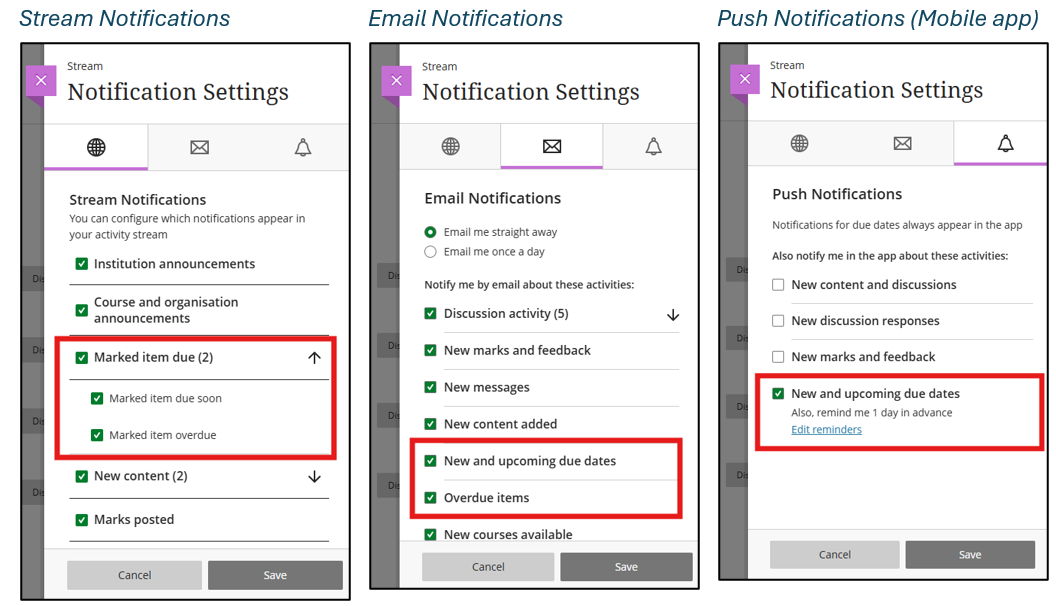
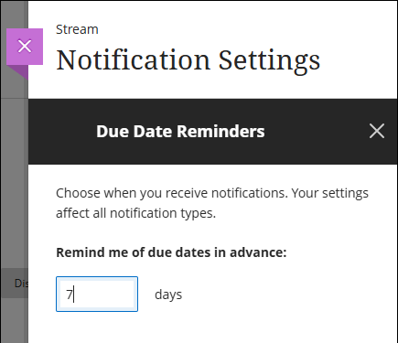
For mobile app push notifications, students can change when they receive reminders. The default is 1 day in advance. Consider changing this setting to receive reminders sooner.
Learning Central calendar
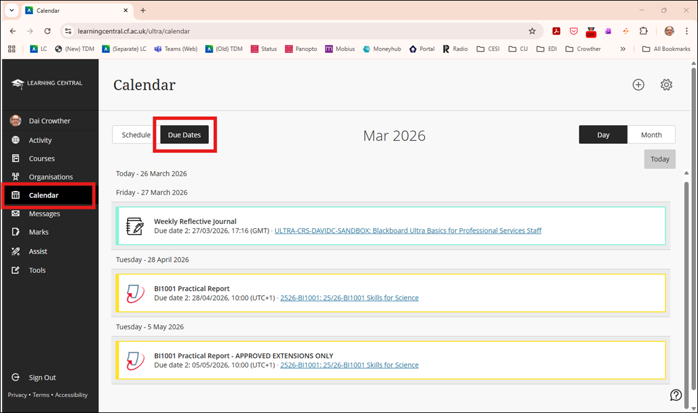
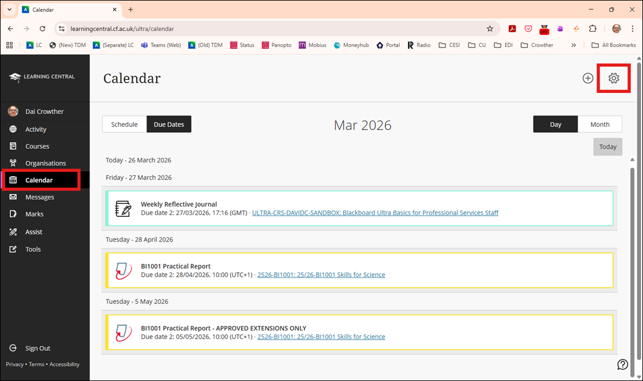
Dates from individual Learning Central module calendars roll up into the global calendar. Students can change the view of the calendar to show only due dates.
Sync the Learning Central calendar with a calendar app
Sync the Learning Central calendar with an external calendar app (e.g., Google Calendar) to see important dates and receive reminders on other devices. With apps like Outlook or a calendar app on their phones, students can get reminders through their favourite apps. To sync the Learning Central calendar:
- Click on the cog icon in the top-right of the global calendar.
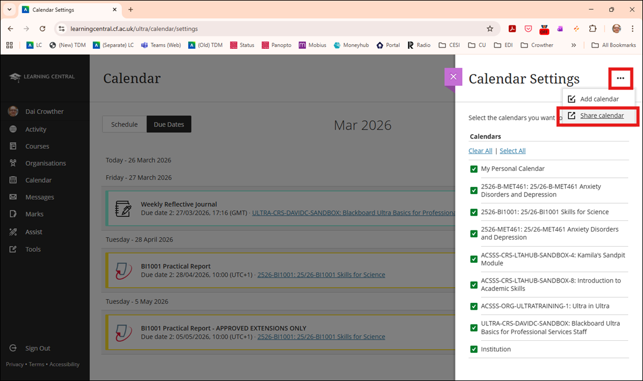
2. Click the 3 dots next to Calendar Settings and select Share calendar.
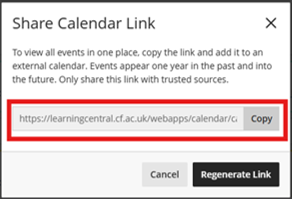
3. Copy the link, go to the calendar app of your choice, and add a new calendar (from URL) to subscribe to the Learning Central calendar.
Learning Central module announcements
Module leaders could schedule announcements that are posted when due dates are approaching. For example, as a reminder, you could schedule an announcement on your module for 7 days before an assessment due date that includes an email copy sent to students’ Cardiff University emails.
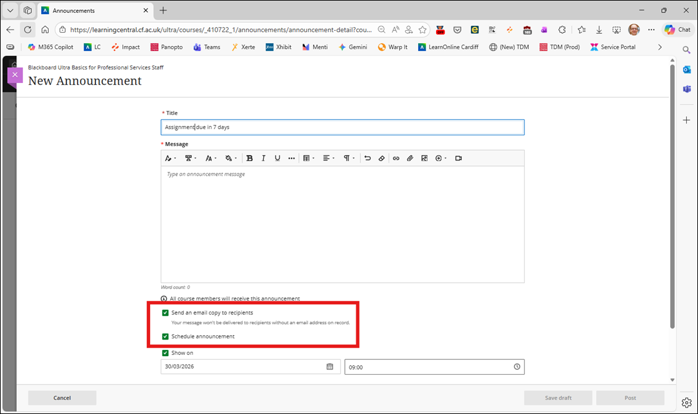
Announcements will appear as popup messages in Learning Central modules when students access them, and once posted, will also appear in the Activity Stream.
Want to know more?
In this blog post I have given some tips that can be shared with students, which they may find useful for staying on top of important dates in Learning Central, and some suggestions for how module leaders can help too.
If you are interested in learning more about how functionality in Learning Central can help you and your students, contact the LTA at [email protected].